Jerrican
A granular instrument that composes itself
A granular synth built from clouds of overlapping micro-grains — set the ranges, hit Play, and it never plays the same piece twice.
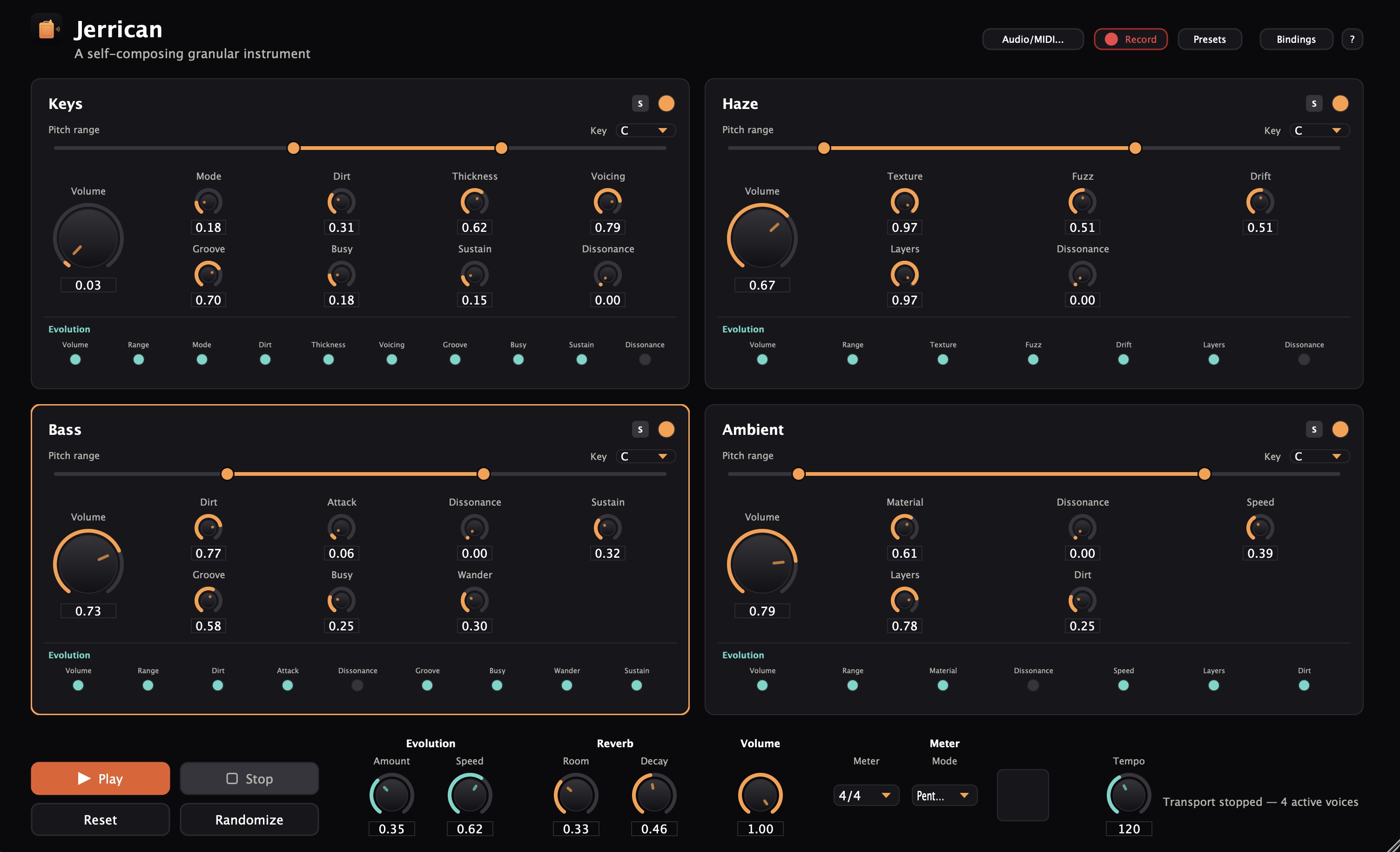
Most synths wait for you to play a note. Jerrican doesn't wait — set the ranges, hit Play, and it starts generating on its own: four voices built from clouds of overlapping micro-grains, endlessly reshaping themselves within the boundaries you've drawn. Same settings, different piece, every time.
It's not a preset-browsing rompler and it's not a sequencer looping a pattern back at you. It's closer to designing a small ecosystem — you shape the tendencies, Jerrican lives inside them.
Four distinct voices
A metered walking Bass, a slow-evolving Ambient pad, a gritty textured Haze layer, and Keys, a chord-comping voice that stays harmonically locked to the rest of the mix.
Evolution
Every knob can drift on its own over time, so the instrument keeps moving without you touching anything.
21 scales, one global Mode control
From Pentatonic through the Western church modes to Hungarian, Middle Eastern, and Japanese-derived scales — all four voices staying in key together.
Presets
A handful of factory presets to open and just play from, plus a full library for your own: save, recall, and build up your own starting points over time.
Per-voice output routing (AU/VST3)
Send each voice to its own DAW track without losing the shared clock that makes them lock together in the first place.
Full MIDI Learn, and Host Sync
Plays well with your existing setup, whether that's a hardware controller or a DAW session.
Free to download. If you find it worth supporting, a suggested donation of €15 is genuinely appreciated — but the full instrument is yours either way, no feature gate, no pressure.
Before you install
- This isn't code-signed yet, so your OS will warn you on first launch — that's expected, not a sign anything's wrong.
- Windows: click "More info" → "Run anyway."
- Mac: System Settings → Privacy & Security → "Open Anyway."
- To install the VST3/AU, copy the file into your system's plugin folder — C:\Program Files\Common Files\VST3\ on Windows, or ~/Library/Audio/Plug-Ins/VST3/ / /Library/Audio/Plug-Ins/Components/ on Mac — then rescan plugins in your DAW.
- In Ableton specifically, don't use "Install Packs" — that's for Ableton's own Pack format, not third-party plugins, and will fail with a misleading "corrupt" error.